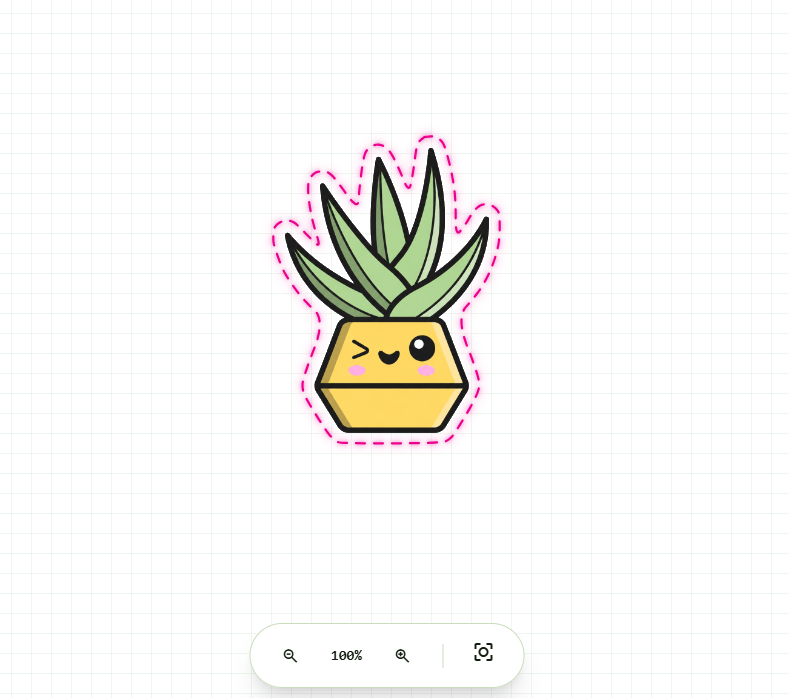
PNG to SVG Cut File: The Easy Way
A PNG is made of pixels, and a cutting machine can't follow pixels. To cut a sticker you need a vector path - a single smooth line the blade can trace. Here is why that conversion matters, where the usual tools go wrong, and how to get a clean cut file from a PNG in seconds.
Why a PNG can't be cut directly
A PNG or JPG is a raster image: a grid of coloured pixels with no idea of where an edge is. Your cutter doesn't work in pixels. It drives a blade along coordinates, so it needs vector paths - mathematical lines and curves that describe an exact route to follow. Send a raw PNG to a Silhouette, Cricut, Roland or Graphtec and there is simply no line for the blade to trace.
An SVG (Scalable Vector Graphics) file stores exactly that: paths defined by points and curves. Converting your PNG into an SVG is what gives the machine a route to cut. The catch is that not every SVG is a good cut file, and the way you make the conversion decides whether the result is usable.
A full trace is not a cut line
The obvious approach is to "trace" the image. Illustrator has Image Trace, Inkscape has Trace Bitmap, and both do the same thing: they scan the whole picture and rebuild every shape and colour as vectors. That is useful if you want to redraw the artwork itself, but it is the wrong tool for a cut file.
A full trace reproduces the entire design, so you get:
- Many separate paths. Every colour block and detail becomes its own shape, often dozens of them layered on top of each other.
- Huge node counts. The outline is packed with points, which makes it heavy, jagged and slow for the machine to cut.
- No offset. The traced edge sits right on the artwork, so a sticker would be cut with no border at all.
What you actually want for a sticker is the opposite of all that detail: one clean line that runs around the outside of the whole design.
What you actually want: a single cut outline
A good cut file for a sticker is a single closed loop that wraps around the outside of the artwork, sitting a few millimetres clear of it. That small gap - the offset - is the white border you see on a printed sticker. It gives you something to peel, hides any tiny misalignment between print and cut, and stops the blade shaving the edge of the design.
So the job is not to trace every colour. It is to find the silhouette of the design, push a line outward from it by a set distance, and smooth that line into one tidy path. A full image trace does none of this on its own.
The manual route, and why it is fiddly
You can build this cut line by hand in vector software, but it takes patience:
- Trace the shape. Run Trace Bitmap or Image Trace, then throw away all the interior detail and colour so you are left with just the outer silhouette.
- Clean up the nodes. The traced outline usually has far too many points and looks jagged up close. You simplify the path and nudge nodes by hand until the curve is smooth.
- Offset the path. Use an offset or outset tool to push the line out by two or three millimetres, then tidy the corners where the offset overshoots or pinches.
- Close the loop. Make sure you end up with a single closed path, not stray fragments or overlapping segments, or the machine may cut in the wrong places.
None of it is hard once you know the steps, but it is slow and easy to get slightly wrong - a jagged edge here, a gap in the loop there - especially across a sheet of different stickers.
What makes a good cut path
However you make it, a cut line that behaves well on the machine has three qualities:
- Smooth. Gentle curves with as few nodes as possible, so the blade glides instead of stuttering across the edge.
- A single closed loop. One continuous path around the design, with no gaps and no overlapping strays.
- A few millimetres of offset. A consistent border around the art, typically two to three millimetres, so there is something to peel and a margin for error.
The easy way: trace and offset in one step
CutPath Pro is built to skip the fiddly part. You upload your PNG or JPG, and instead of tracing every colour it reads the outline of the design, offsets a clean line around it by the border you choose, and smooths that line into a single closed loop - trace and offset done together in one step. There are no nodes to clean up and no offset tool to wrestle with.
When the cut line looks right, you export it as an SVG ready to open in your cutting software, or as PDF, DXF or EPS if your workflow prefers those. It is the same result you would get from careful manual work, without redrawing anything by hand.
From PNG to cut file in seconds
Upload a PNG and get a clean, single-loop SVG cut line with the offset already built in. Your first cut file is free - no card needed.