The Best File Format for Cutting Stickers (SVG, PDF, DXF, EPS)
There is no single "best" format for a cut file - the right choice depends on whether you are feeding a hobby cutter, handing off to a professional print shop, or sending geometry to a CNC or laser. Here is what each of the four common vector formats does, and which one to pick for your workflow.
Every one of these formats stores your cut line as vector geometry rather than pixels, which is exactly what a cutting machine needs: a precise path it can follow with a blade. Where they differ is in what extra information they can carry alongside that path - colour, spot channels, layers - and which software and hardware actually read them well.
SVG - the open vector format for craft cutters
SVG (Scalable Vector Graphics) is an open, text-based vector format that opens cleanly in almost every design tool. It is the natural choice for hobby and craft machines: Silhouette Studio, Cricut Design Space and Inkscape all import SVG directly, and the cut line comes through as a proper vector path you can select, resize and send to cut.
Because SVG is widely supported and easy to inspect, it is forgiving to work with. You can keep the cut line on its own named layer so the machine software knows which path to cut rather than print. For most people making stickers at home on a Cameo, Portrait or Cricut, SVG is all you need.
PDF - what professional print shops and RIPs prefer
PDF is the universal handoff format, and it is what most professional print shops and RIP (raster image processor) software expect to receive. It scales reliably, embeds fonts and colour profiles, and - crucially for cutting - it can carry spot colours. A print shop will typically want the cut line defined as a named spot colour, often called a CutContour layer, so their RIP prints the artwork and routes that one spot channel to the cutter or plotter.
If you are sending a file to a shop to be printed and cut on equipment like a Roland or Graphtec, PDF is usually the safest choice. It preserves your intended scale precisely and keeps the cut path clearly separated from the printed artwork.
DXF - geometry only, for CNC and laser
DXF (Drawing Exchange Format) comes from the CAD world. It stores vector geometry and nothing else - no colour information and no spot channels - so it is purely a description of the shapes and paths. That makes it a poor fit when you need print and cut data together, but a good fit when all you need is the cut path.
Some vinyl cutters read DXF, and it is common in CNC and laser workflows where the machine only cares about the outline it has to follow. If your job is cut-only and the receiving software or machine asks for DXF, use it - just remember it will not carry any of the printed design, only the geometry.
EPS - the older format sign shops still use
EPS (Encapsulated PostScript) is an older vector format, largely superseded by PDF, but it is still in active use at many sign shops and in some RIP software. Like PDF, it supports spot colours, so you can define a named cut layer within it for the RIP to route to the cutter.
If a shop specifically asks for EPS, or their older software handles it more reliably than PDF, it is a perfectly valid choice. In most modern workflows, though, PDF does the same job with broader support.
Which should I use?
Match the format to where the file is going:
- Craft cutter at home (Silhouette, Cricut) - use SVG.
- Sending to a print shop or RIP - use PDF (or EPS if they ask for it) with a named cut layer or spot colour.
- CNC or laser, cut-only - use DXF.
Whichever format you choose, the single most important thing is that the cut line lives on its own named layer or spot colour, kept separate from the printed artwork. That is what lets the machine or RIP tell the difference between "print this" and "cut here". A file where the cut path is mixed in with the design is far more likely to cut in the wrong place, or not be recognised as a cut line at all.
Let CutPath Pro export the right one
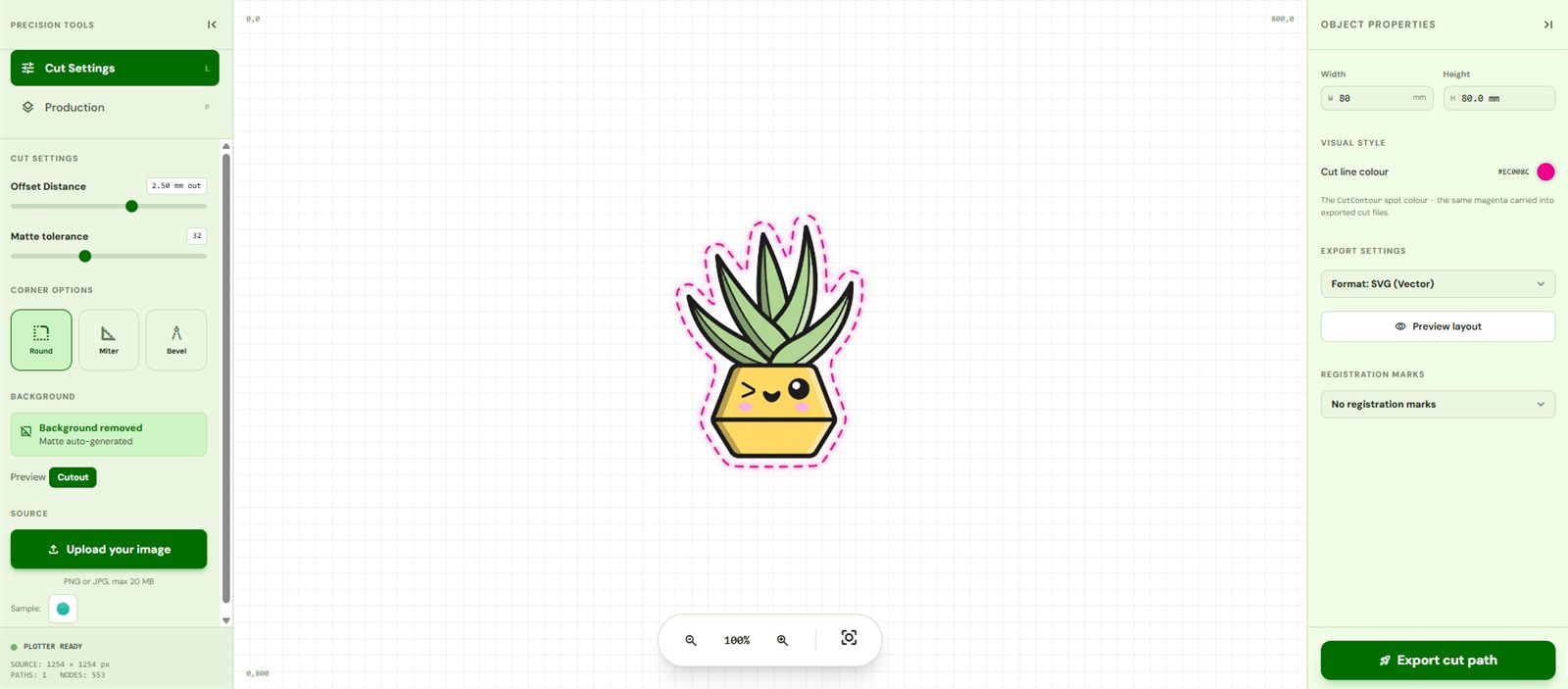
You do not have to redraw your cut line for each destination. Upload your PNG or JPG to CutPath Pro, and it traces a clean cut line that hugs the artwork, then exports it as SVG, PDF, DXF or EPS - each with the cut line on its own named layer so your machine or print shop reads it correctly. Pick the format your workflow needs and hand it straight over.
Export the right format instantly
CutPath Pro turns your artwork into a print-ready cut file in SVG, PDF, DXF or EPS, each with a named cut layer. Your first cut file is free - no card needed.